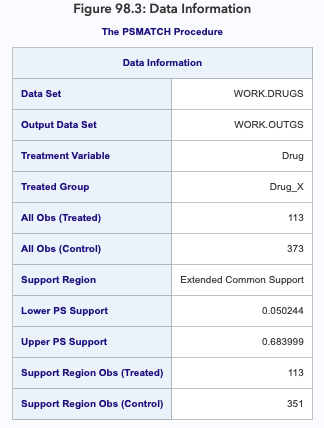
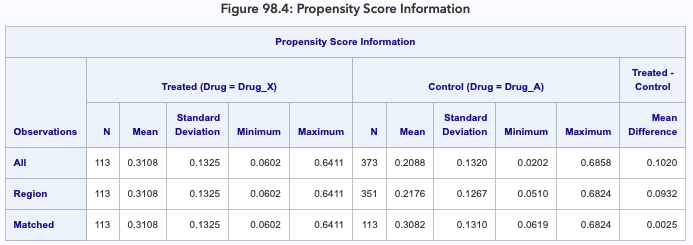
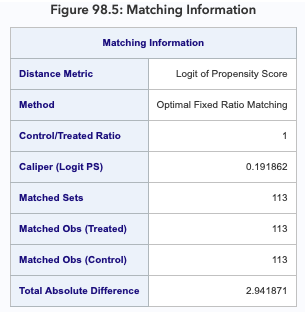
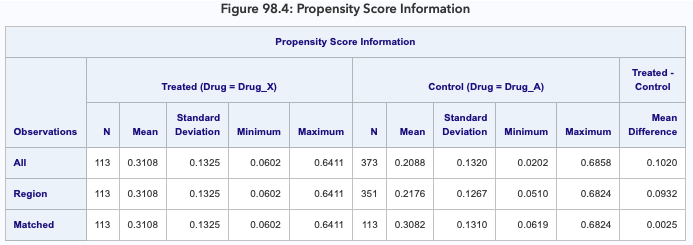
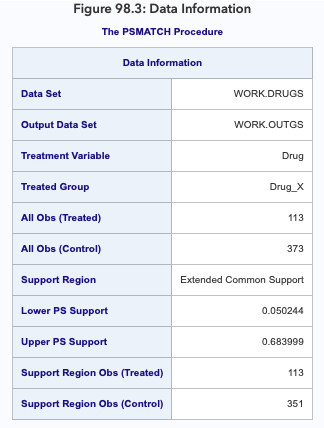
[size=14.079999923706055px]The "Matching Information" table in Figure 98.5 displays the matching criteria, the number of matched sets, the numbers of matched observations in the treated and control groups, and the total absolute difference in the logit of the propensity score for all matches.
[size=14.079999923706055px]

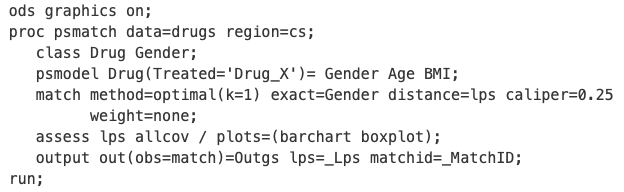
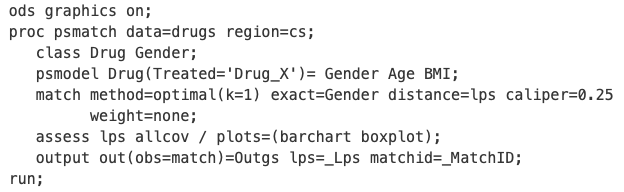
[size=14.079999923706055px]The ASSESS statement produces a table and plots that summarize differences in specified variables between treated and control groups. As specified by the LPS and ALLCOV options, these variables are the logit of the propensity score (LPS) and all the covariates in the PSMODEL statement: Gender, Age, and BMI. For a binary classification variable (Gender), the difference is in the proportion of the first ordered level (Female).
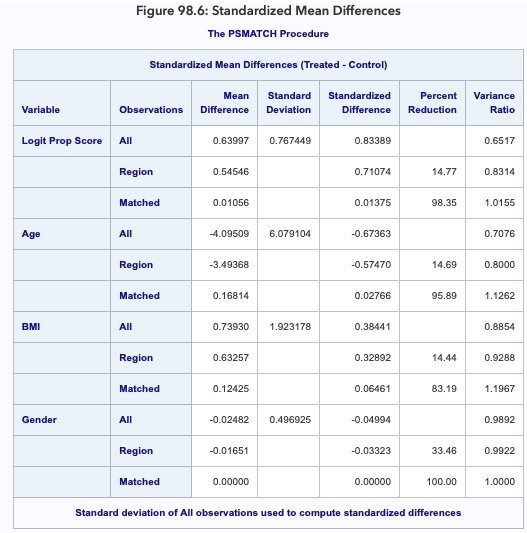
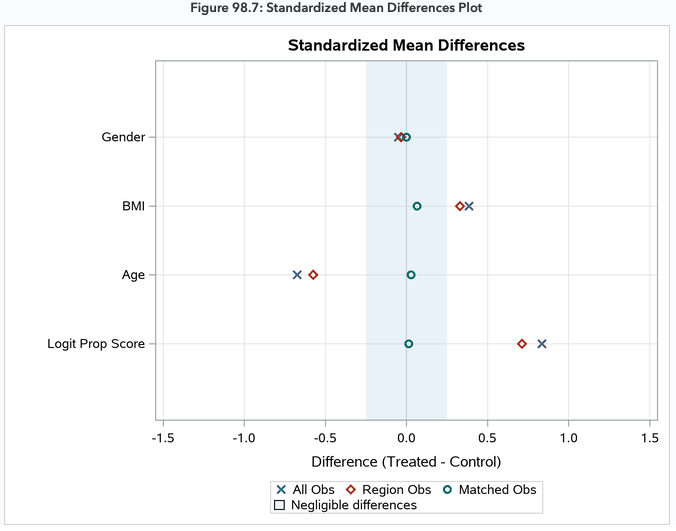
[size=14.079999923706055px]The "Standardized Mean Differences" table, shown in Figure 98.6, displays standardized mean differences for all observations, observations in the support region, and matched observations. The WEIGHT=NONE option suppresses the display of differences for weighted matched observations. Note that when one control unit is matched to each treated unit, the weights are all 1 for matched treated and control units and the results are identical for weighted matched observations and matched observations.
[size=14.079999923706055px]

[size=14.079999923706055px]By default, the standard deviations of the variables, pooled across the treated and control groups, are computed based on all observations. The pooled standard deviations are then used to compute standardized mean differences based on all observations, observations in the support region, and matched observations. You can request a different standard deviation with the STDDEV= option. In Figure 98.6 the standardized mean differences are significantly reduced in the matched observations. The largest of these differences in absolute value is 0.0646, which is less than the upper limit of 0.25 recommended by Rubin (Figure 98.6. All differences for the matched observations are within the recommended limits of –0.25 and 0.25, which are indicated by the shaded area. Again, note that many authors use limits of –0.10 and 0.10. (Normand et al. 2001; Mamdani et al. 2005; Austin 2009). You can use the PLOTS=STDDIFFPLOT(REF=) option to specify the limits for the shaded area.
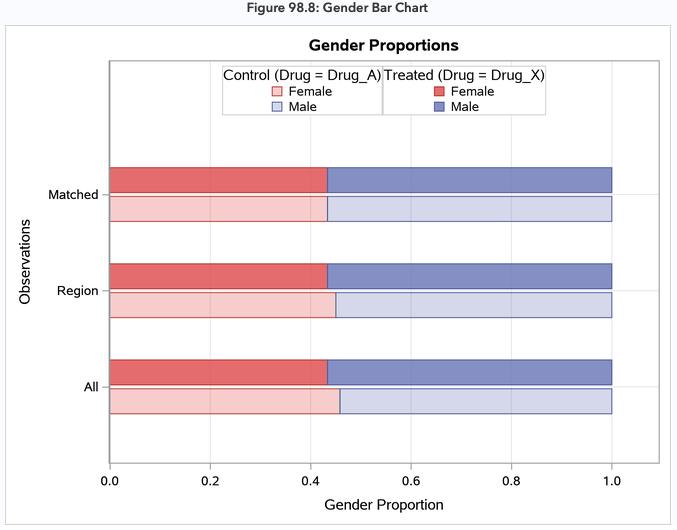
[size=14.079999923706055px]The PLOTS=BARCHART option requests bar charts that compare the treated and control group distributions of binary classification variables that are specified in the ASSESS statement. The bar chart that is created for Gender is shown in Figure 98.8. The chart displays proportions by default, and it provides comparisons based on all observations, observations in the support region, and matched observations. The distributions of Gender are identical for matched observations because EXACT=GENDER is specified in the MATCH statement.
[size=14.079999923706055px]

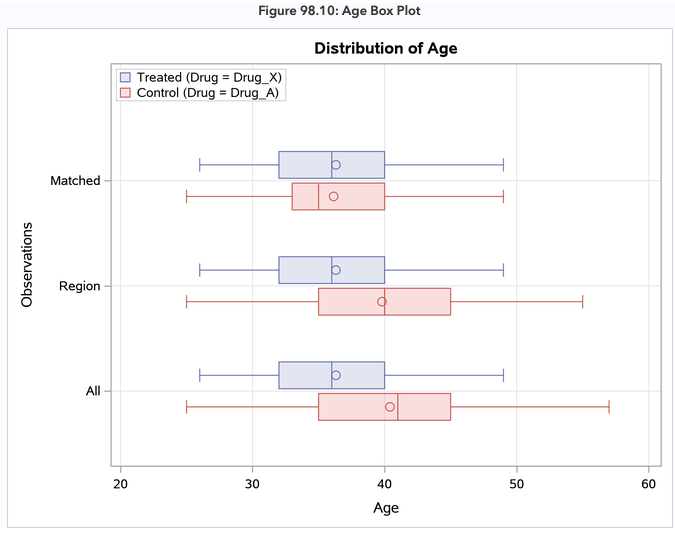
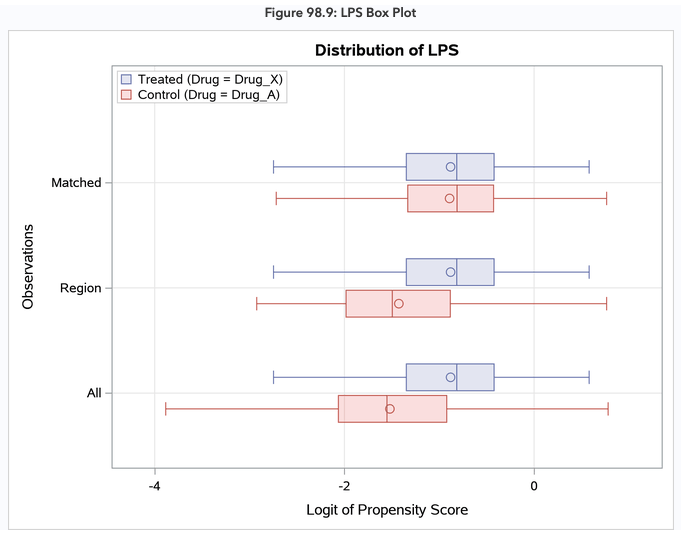
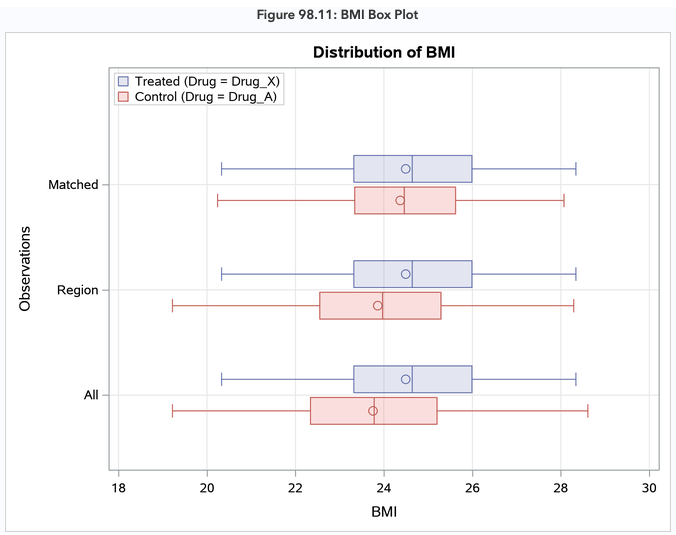
[size=14.079999923706055px]The PLOTS=BOXPLOT option requests box plots for the logit of the propensity score (LPS) and for the continuous variables that are specified in the ASSESS statement, as shown in Figure 98.9, Figure 98.10, and Figure 98.11. The box plots show good variable balance for the matched observations.
[size=14.079999923706055px]


[size=14.079999923706055px]

[size=14.079999923706055px]Because the matched observations in this example exhibit good balance, you can output them for subsequent outcome analysis. In situations where you are not satisfied with the balance, you can do one or more of the following to improve the balance: you can select another set of variables for the propensity score model, you can modify the specification of the propensity score model (for example, by introducing nonlinear terms for the continuous variables or by adding interactions), you can modify the matching criteria, or you can choose another matching method.
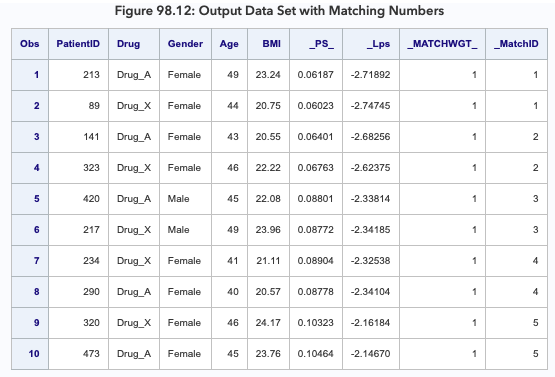
[size=14.079999923706055px]The OUT(OBS=MATCH)= option in the OUTPUT statement creates an output data set named Outgs that contains the matched observations. By default, this data set includes the variable _PS_ (which provides the propensity score) and the variable _MATCHWGT_ (which provides matched observation weights). The weight for each treated unit is 1. The weight for each matched control unit is also 1 because one control unit is matched to each treated unit. The LPS=_LPS option adds a variable named _LPS that provides the logit of the propensity score, and the MATCHID=_MatchID option adds a variable named _MatchID that identifies the matched sets of observations.
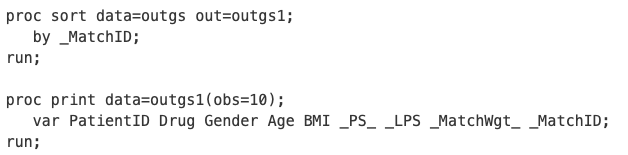
[size=14.079999923706055px]The following statements list the observations in the first five matched sets, as shown in Figure 98.12.
[size=14.079999923706055px]

[size=14.079999923706055px]

After the responses for the trial are observed and added to the matched data set Outgs, you can estimate the treatment effect by carrying out the same type of outcome analysis on Outgs that you would have used with the original data set Drugs (augmented with responses) as if it were a randomized trial (Ho et al. 2007, p. 223). This assumes that no other confounding variables are associated with both the response variable and the treatment group indicator Drug.
SAS中除了用以上proc PSMATCH实现以外,还有用其他方式实现的,这里就不详细介绍了,把查到资料贴在下面,大家一起学习一下。(附件1楼已经上传)




 基于相对危险度:患病率比的模型及参数估计方法研究进展.pdf


 扫码加好友,拉您进群
 全部版块
全部版块 我的主页
我的主页

 收藏
收藏